Instrument
Umbra
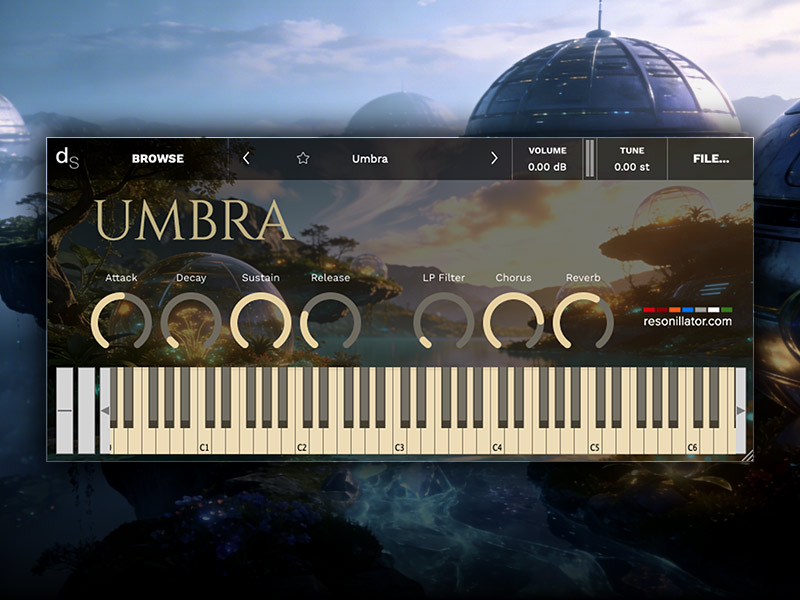
Umbra is a deep, ethereal pad — dark, unhurried, and quietly haunting. The name means shadow, and that’s exactly what it sounds like. It sits underneath things. It holds space. Play a single note and let it breathe.
It works beautifully for:
- Ambient and atmospheric music
- Meditation and sound healing sessions
- Film and video scoring
- Anything that needs weight and stillness
How to use it
Umbra is a sample instrument for Decent Sampler — a completely free plugin that runs on Mac and Windows as a VST, VST3, AU, AAX, or standalone application.
Step 1 — Download Decent Sampler (free) Go to decentsamples.com and download the version for your system. It takes about a minute to install.
Step 2 — Download Umbra Download the Umbra folder from the link below and place it anywhere on your computer — a dedicated Sounds or Instruments folder works well.
Step 3 — Load it Open Decent Sampler, click the menu icon in the top left, choose Open, and navigate to the Umbra folder. Select the Umbra.dspreset file and it loads instantly.
Step 4 — Play That’s it. No fuss, no complicated setup. Just play.
The controls
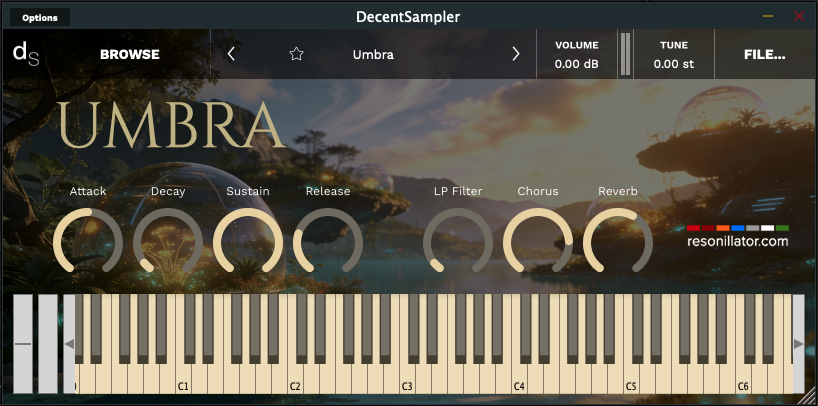
Once loaded you’ll see seven knobs:
- Attack — how quickly the note fades in when you press a key
- Decay — the initial drop after the note peaks
- Sustain — the held level while a key is pressed
- Release — how long the sound fades after you lift a key
- LP Filter — a low-pass filter that rolls off the high frequencies for a darker, warmer tone
- Chorus — adds subtle movement and width
- Reverb — places the sound in a space, from intimate to vast
For Umbra I’d suggest starting with a slow attack, a long release, and a touch of reverb. But there are no rules.